
Introduction#
Changing partition sizes on Linux can be needed for many different for several different reasons. In my case I had two distros of Linux installed on my drive, as I was using the arch partition more often and was running out of space I decided to delete the Ubuntu partition and resize the arch partition to use the free space.
There are several different tools to manage partitions in Linux, for this guide I made use of parted, fdisk, and resize2fs
Steps#
The first step is to find the path of the drive that you want to edit. On most laptops this will be nvme0n1, however storage devices can also take the form of sda or mmcblk0. This can be done with the command
sudo fdisk -l
In my case my output contained several entries, the one of interest was
Disk /dev/nvme1n1: 931.51 GiB, 1000204886016 bytes, 1953525168 sectors
Disk model: WD_BLACK 1000GB
Units: sectors of 1 * 512 = 512 bytes
Sector size (logical/physical): 512 bytes / 512 bytes
I/O size (minimum/optimal): 512 bytes / 512 bytes
Disklabel type: gpt
Disk identifier: 3A28ED7F-D92A-4B57-AFC2-09AE47D407A5
Therefore, I can see that for my laptop the storage device I want to edit is labelled nvme1n1.
Even if you have already conifugred your drive in the past and therefore know the identifier, it is still valuable to check the identifier of your drive before performing any operations as it can change between reboots of hardware configuration changes.
Next step is use the parted utility to make edits to the partition on the drive.
sudo parted /dev/nvme1n1
Once you start the utility you will see a new prompt (parted). The command ‘p’ will list the partitions, ‘rm’ will delete partitions, and ‘resize’
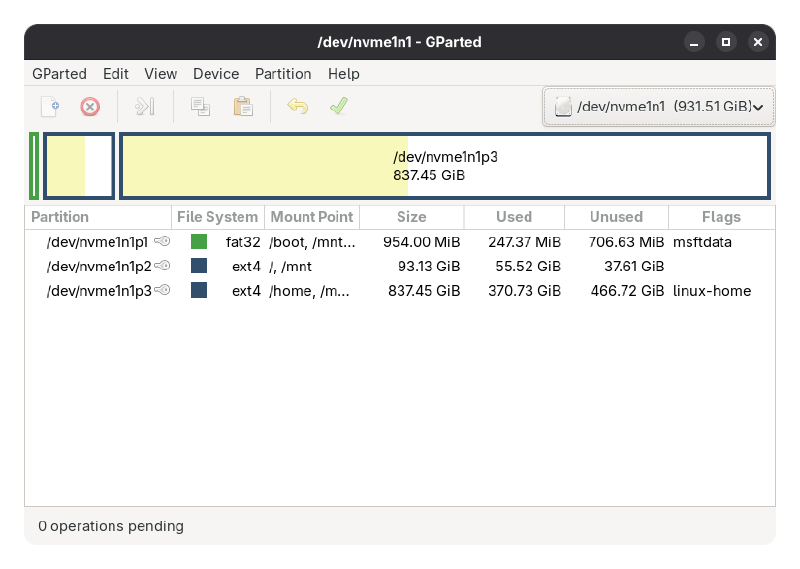
In my case I used command line tools for resizing the partitions on my drive, however there is also a GUI tool gparted