

Introduction#
While many languages use the 26 letters found on most computer keyboards, languages like Chinese, Korean, Japanese, or Arabic require different input methods. On Windows the process of adding a new language is simple enough: go to settings, add a new language, and everything is set up automatically.
On Linux the setup requires a little more effort, however that is the tradeoff for having more control over your system. This guide was written for an Arch + Wayland + Gnome environment. I’ll be installing pinyin input as an example, however the main ideas are generally applicable for other versions.
Font Support#
It is important to install fonts to have support for displaying your input language. In my case I installed the following fonts for Chinese
- adobe-source-han-sans-cn-fonts
- adobe-source-han-sans-tw-fonts
As a bonus you can also install fonts for other languages to prevent the characters from appearing as unknown Unicode characters when you encounter them on the online
- adobe-source-han-sans-kr-fonts
- adobe-source-han-sans-jp-fonts
- adobe-source-han-serif-jp-fonts
A great resource for finding fonts is the Arch Linux Wiki localization pages
- https://wiki.archlinux.org/title/Localization/Korean
- https://wiki.archlinux.org/title/Localization/Japanese
- https://wiki.archlinux.org/title/Localization/Chinese
While installing fonts you can also use this as a chance to update your emoji support. I installed noto fonts, however there are a lot of other choices that are also viable
On Linux fonts can be installed through the package manager similar to installing packages
sudo pacman -S adobe-source-han-sans-cn-fonts
You may need to restart your session for the fonts to display properly across your system
Installing an input method#
There are many different types of input method choices for Linux. A comprehensive list can be found at https://wiki.archlinux.org/title/Input_method. For my use case I chose Fcitx5.
Fcitx5 requires a few extra components to work properly. For my language choice I needed to install a dictionary
sudo pacman -S fcitx5-pinyin-zhwiki
Gnome also requires the installation of the Input Method Panel extension to display properly. This can either be done through the AUR package gnome-shell-extension-kimpanel-git or by installing the extension from extensions.gnome.org
Configuration#
Once all the pacakges are installed the system, the last step is to choose the desired languages. This can be done from the command line. Alternatively, there is a convieneint GUI tool that works with Fcitx5. The GUI tool can be installed with
sudo pacman -S fcitx5-configtool
Input methods can either be added by moving items from the right column over to the left column, or using the ‘Select system keyboard layout’ option.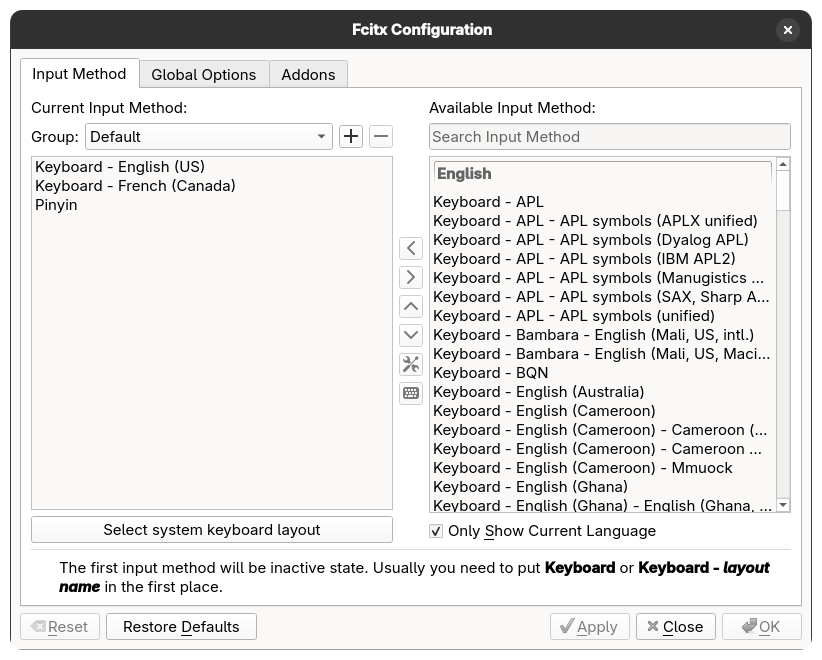
For those who are used to the keyboard shortcuts from windows, you can change the keyboard shortcuts in the Fcitx Configuration app. The main change I made was to change “Toggle Input Method” to Super + Space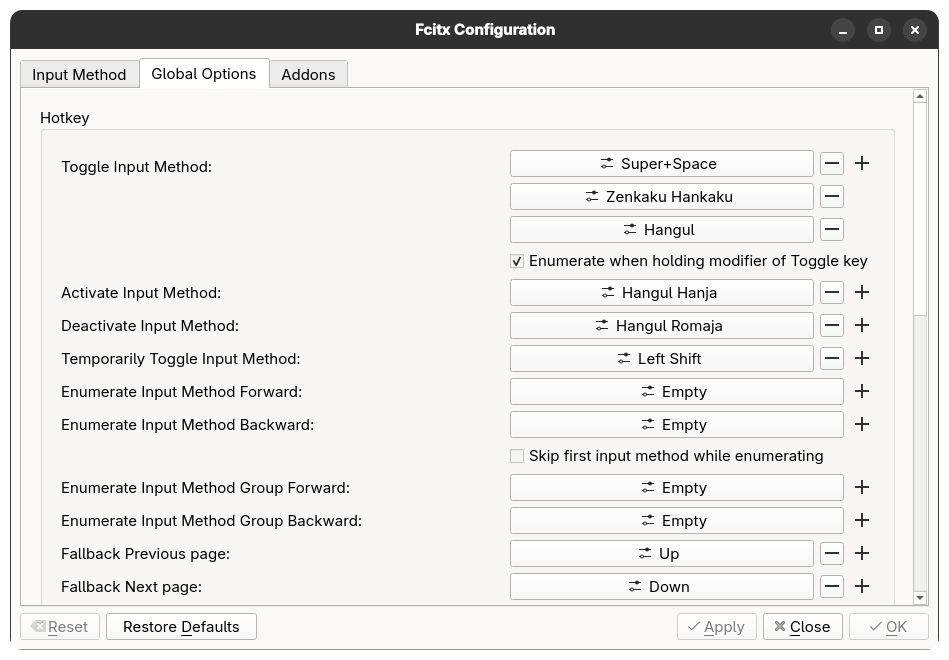
And that concludes the guide, happy typing!
